
The core package

PrimeNEST Nesting Software

DXF in, optimized sheets out. Everything a cutting department needs to turn a parts list into a cut-ready nest.

Step 01

Load DXF files and tag your parts

Load DXF geometry straight from CAD. The Part Metadata Editor puts every part in one list with a preview thumbnail, so you can review and complete the data before anything reaches the nest.
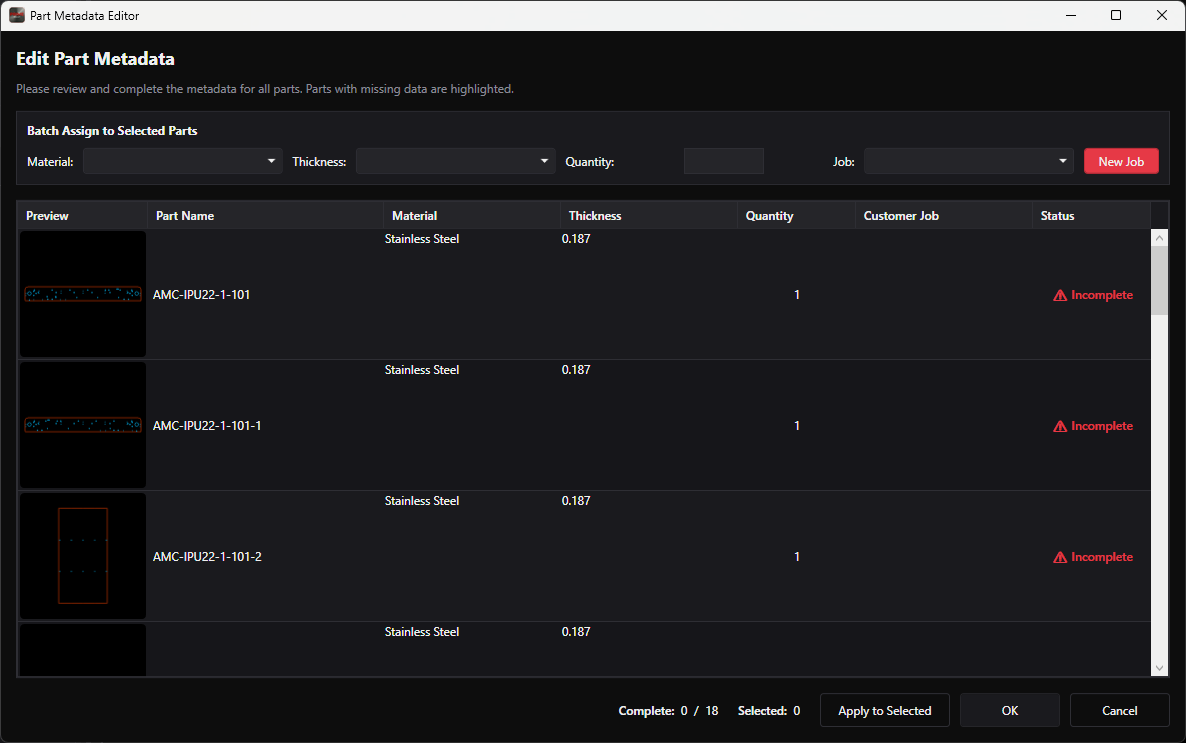
  • DXF import with part preview thumbnails
  • Material, thickness, and quantity per part
  • Batch-assign values across selected parts at once
  • Assign parts to a customer job, or spin up a new one
  • Incomplete parts are flagged before you nest, not after
Part Metadata Editor listing imported DXF parts with preview thumbnails, material, thickness, quantity, and completion status
Step 02

Set your cutting parameters once

Every material and thickness combination carries its own cutting data. Set it up once and every nest that uses that combination inherits the right speeds, pierce times, leads, and cost.
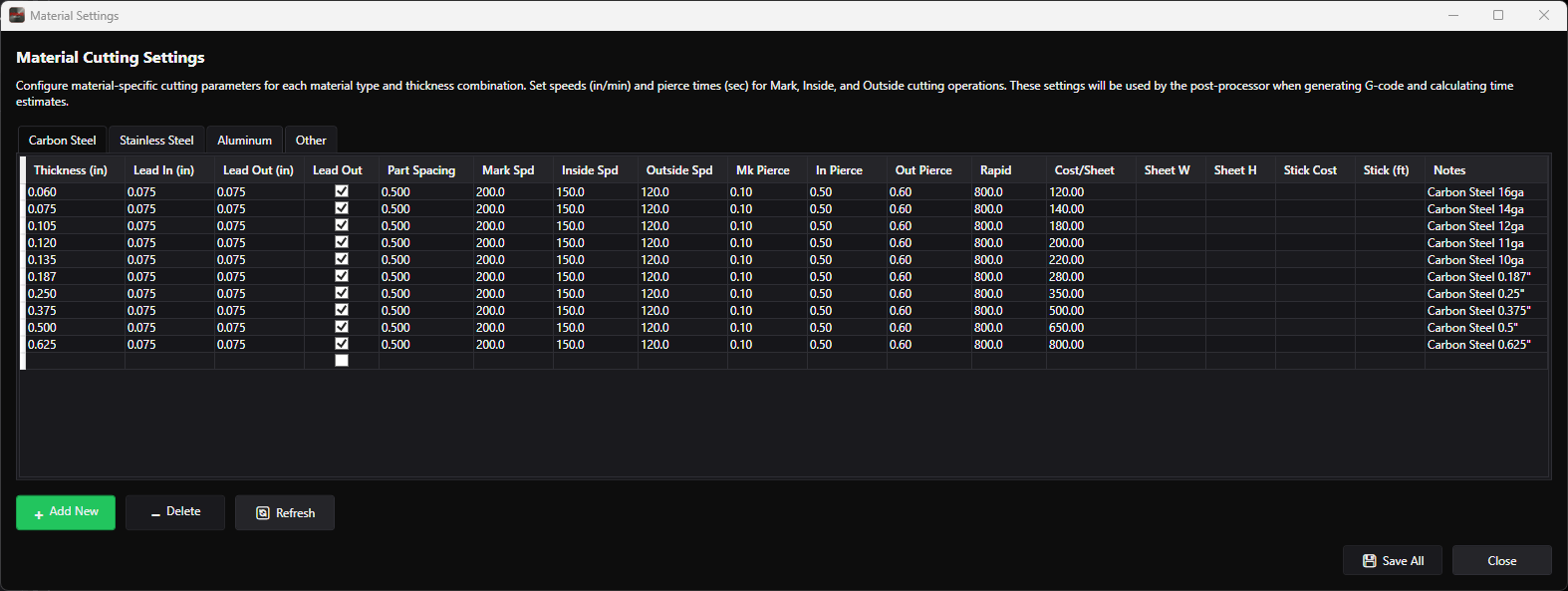
  • Separate tables for carbon steel, stainless, aluminum, and custom materials
  • Mark, inside, and outside cut speeds plus pierce times
  • Lead-in and lead-out lengths, with lead-out toggled per row
  • Part spacing set per material and thickness
  • Cost per sheet and sheet dimensions for job costing
  • Feeds the post-processor and the cut-time estimate
Material cutting settings table showing lead-in, lead-out, part spacing, speeds, pierce times, and cost per sheet for each carbon steel thickness
Step 03

Nest it, then adjust what you want

The true-shape engine works the real part outline, not a bounding box. Hit Nest and watch utilization, parts placed, pierce count, and cut length update on the status bar — then take over by hand wherever you'd do it differently.
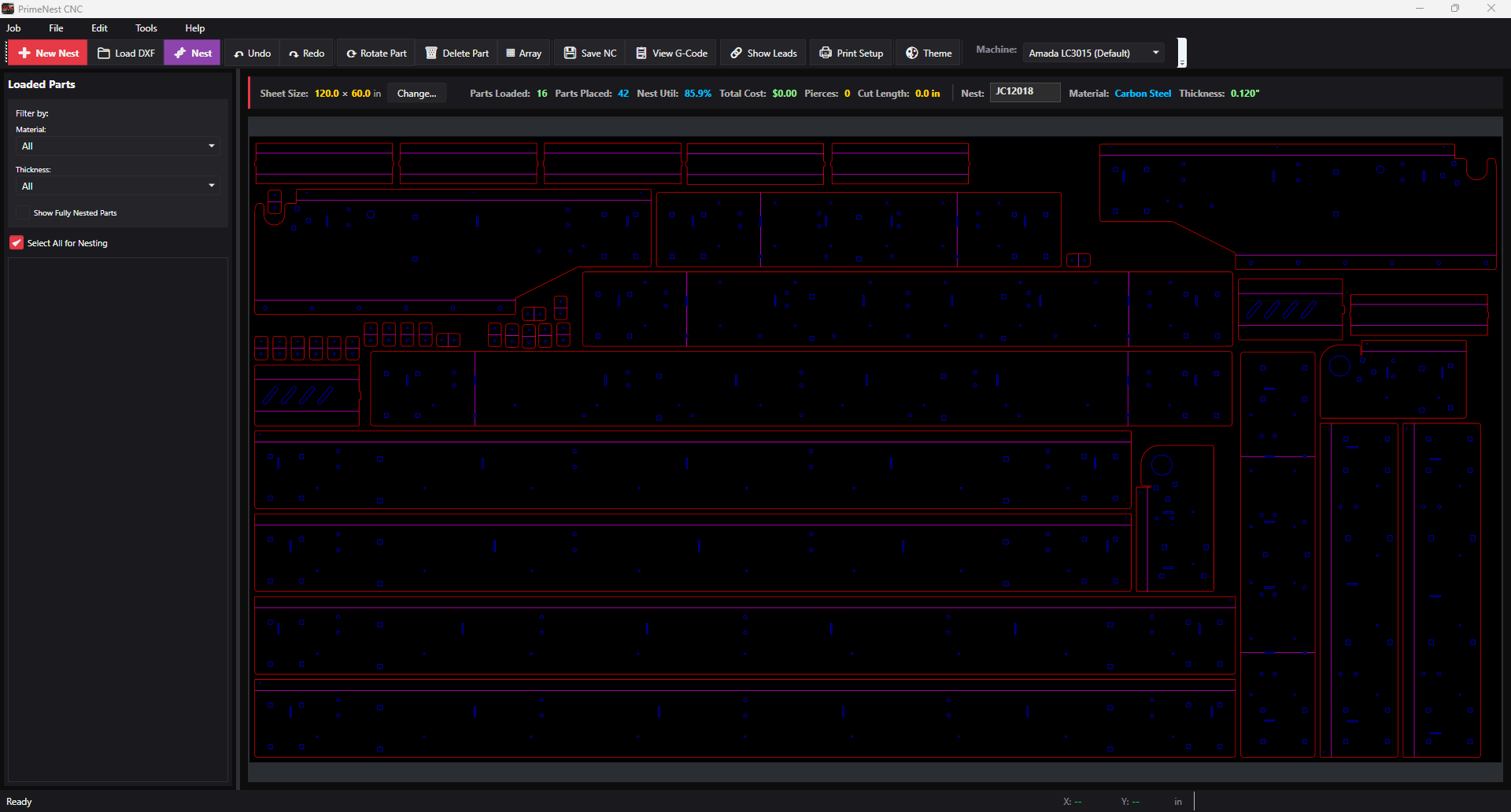
  • True-shape automatic nesting
  • Live utilization, parts placed, pierces, and cut length
  • Rotate, array, and delete parts on the sheet
  • Full undo and redo while you work the nest
  • Show leads to see lead-in and lead-out placement
  • Change sheet size on the fly
PrimeNEST nest view with 42 parts placed on a 120 by 60 inch carbon steel sheet at 85.9 percent utilization
Step 04

Post G-code your control actually accepts

Generic output means somebody hand-edits the program before it runs. PrimeNEST keeps a profile per machine, so the G-code comes out in the dialect that machine expects — header, footer, motion commands, and all.
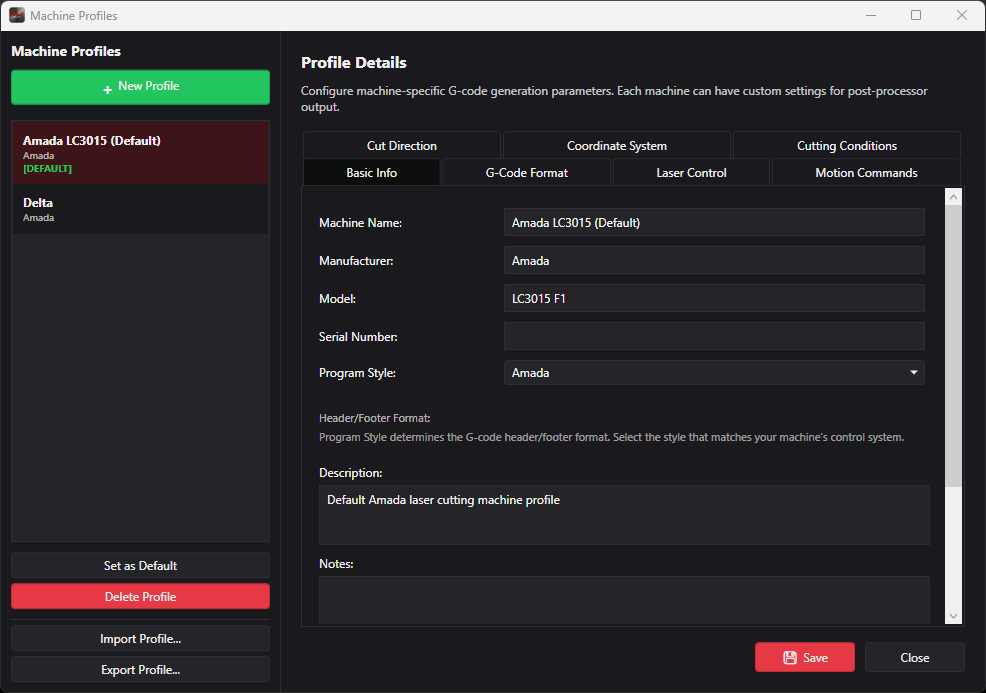
  • Unlimited machine profiles, one set as default
  • Program style sets the G-code header and footer format
  • Configure G-code format, motion commands, and coordinate system
  • Laser control, cut direction, and cutting conditions per machine
  • View G-code before you post it, then Save NC
  • Import and export profiles to move them between seats
Machine Profiles dialog configuring G-code generation parameters for an Amada LC3015 laser
Reference

Specifications

ItemDetail
PlatformWindows 10 / Windows 11 (64-bit)
Import formatsDXF
OutputG-code / NC, generated per machine profile
Machine typesCNC laser, CNC plasma
Nesting methodTrue-shape
MaterialsCarbon steel, stainless steel, aluminum, plus custom entries
Cutting parametersSpeeds, pierce times, leads, and part spacing per material and thickness
CostingCost per sheet, cut length, and pierce count per nest
Job trackingParts assigned to named customer jobs
Machine profilesUnlimited, importable and exportable
LicensingPer-seat license — see Pricing
Add-on modulesStructural Steel Workflow, Auto-Load DXF

Have a machine or controller not listed here? Ask us — we'll confirm compatibility before you buy.

Try it on your own parts

Send a few DXF files and we'll nest them for you, so you can see the utilization number on real work — not a demo file.